wordpress update monitoring
Get an alert when a WordPress update breaks the page.
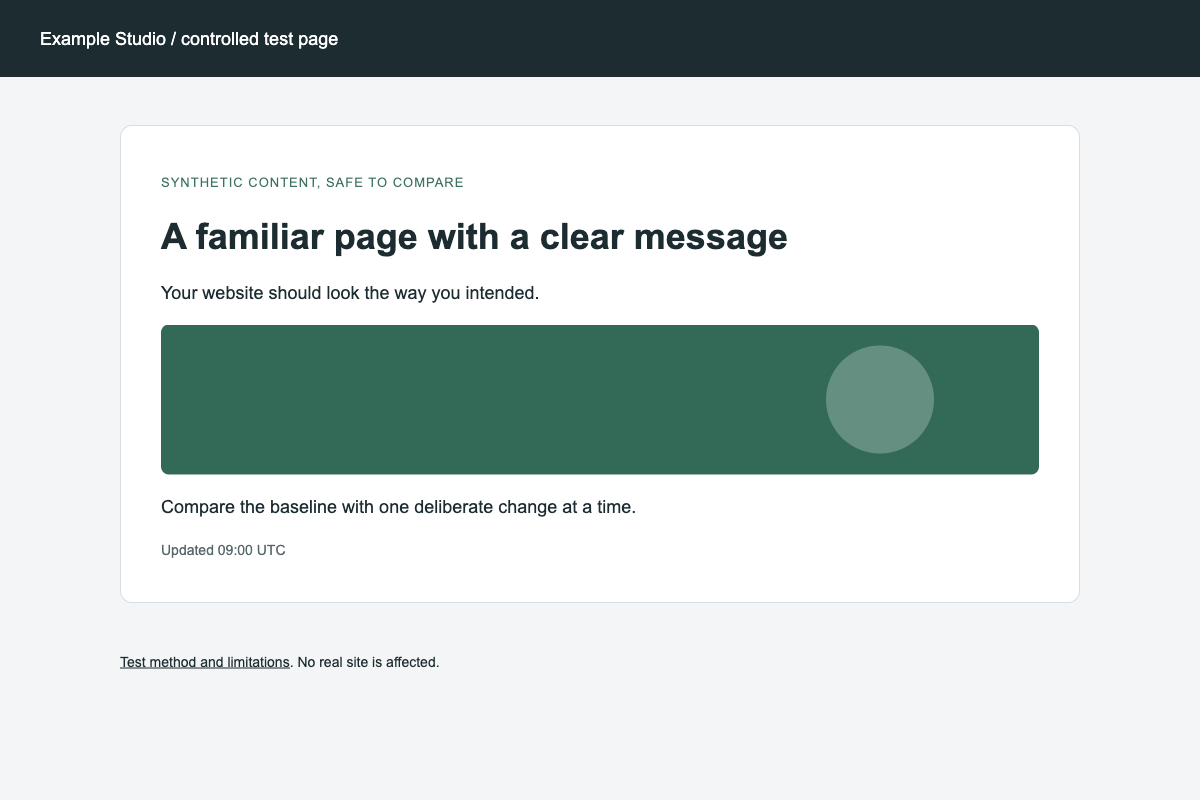
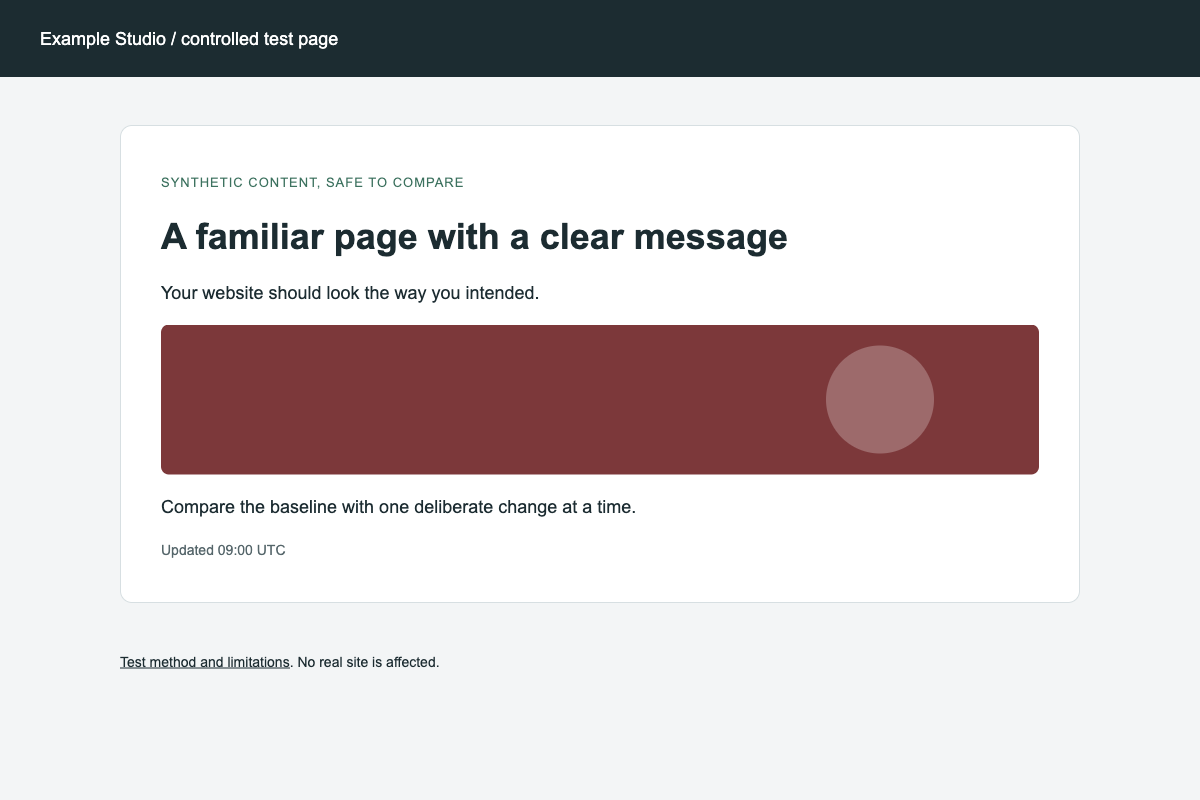
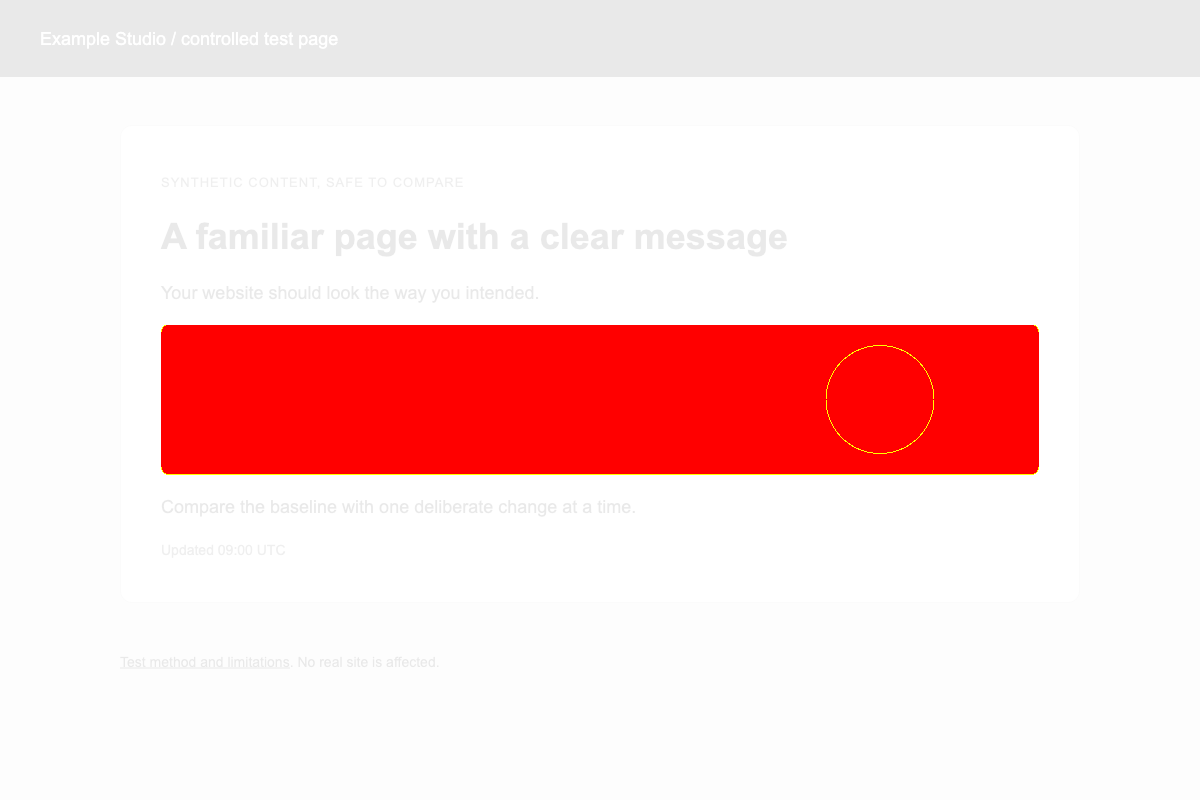
Plugin, theme and Elementor updates can leave a page blank, shifted or missing its buttons while the server still answers as if nothing is wrong. Visual Sentinel opens the page in a real browser on a schedule, compares it with the last good screenshot, and alerts your team with the before, after and difference images.
7-day trial, card required, or subscribe now. Solo is $15/month ($12.75/month billed annually). 14-day money-back guarantee on every paid plan.
definition
What is WordPress update monitoring?
WordPress update monitoring watches the pages visitors see after WordPress, a plugin or a theme changes, rather than only checking that the server responds. Visual Sentinel opens the page in a real browser on a fixed schedule (visual checks every 30 minutes on Solo and every 15 minutes on Starter, Business and Agency), takes a screenshot of the visible screen or, if you choose, the whole page, compares it pixel by pixel with the confirmed baseline, and raises an alert when the difference crosses your threshold (5% by default). The same monitor runs uptime, SSL, DNS and speed checks, and on Starter and higher it can also watch the visible text in parts of the page you choose, such as a price, a form label or a footer notice.
customer voices
What our users say.
I tried UptimeRobot and ChecklyHQ, but neither solved the problem of finding broken pages until we checked manually. With Visual Sentinel, we get instant alerts and can fix our WordPress sites quickly instead of finding issues by accident.
Powered Storage
We run an agency and due to Elementor updates or cache issues, some client websites would break. We only found out from client complaints because UptimeRobot didn't catch visual issues. After switching to Visual Sentinel, we get alerts about broken pages in minutes. Would recommend 5/5.
The DWCO
what you get
Built for issues customers actually notice.
Screenshot proof when an update changes the page
When a plugin or theme update shifts the hero, hides a button or blanks a section, the alert carries the last good screenshot, the new one and a highlighted difference image.
Catches what a basic check misses
A blank white page or a section a plugin stopped showing can still load normally, so a basic up-or-down check stays green. The visual check compares what visitors see, not just whether the server answered.
Desktop and phone on Business and Agency
Solo and Starter watch one screen size per site, desktop or phone. Business and Agency capture desktop and phone separately, so a layout that only breaks on phones still raises an alert.
Alerts where your team already is
Every paid plan sends alerts to email, Slack, Discord, Microsoft Teams, Telegram, WhatsApp, PagerDuty, OpsGenie, webhooks, Prometheus and web push.
Text watch for the lines that matter
On Starter and higher, point the monitor at the price, the button label or the legal footer (with a CSS selector), and Visual Sentinel alerts when that text changes. It reads the page as the server sends it, so text added later by scripts is not checked.
Server context for self-hosted WordPress
Link the Linux or macOS server agent to the site monitor to see CPU, memory and disk beside the incident, so a server problem after an update shows in the same view. One server on Solo, two on Starter, 10 on Business and 20 on Agency.
keep reading
Related pages
how it works
Three steps, no extensions.
Add the pages before you update
Add the homepage and the pages you care about, such as checkout, contact or pricing, and confirm the first baseline screenshot. Solo covers one visual site plus up to three extra pages; Starter covers five visual sites with up to five extra pages each.
Run the update
Update WordPress, plugins or the theme as you normally do. Visual Sentinel keeps checking on its schedule and compares the page after the update with the baseline from before it.
Review the difference, then accept or roll back
If the difference crosses your threshold, you get an alert with before, after and difference images. Roll back the plugin, fix the styling, or accept the new look as the baseline.
Frequently asked questions
How fast will I know that an update broke the page?
Visual checks run every 30 minutes on Solo and every 15 minutes on Starter, Business and Agency. When a check finds the page has changed, Visual Sentinel takes a new screenshot and compares it with the baseline, and you get an alert if the difference crosses your threshold. Treat these as check schedules, not a promised alert time: confirming a change and delivering the alert take time too. Uptime checks run separately every 5 minutes on Solo and Starter and every minute on Business and Agency, so a page that stops loading is caught sooner than one that only looks wrong.
Does it work with Elementor, Divi and WooCommerce?
Yes. Visual Sentinel watches the public pages any WordPress site serves, whatever the builder or theme. It cannot watch a real WooCommerce checkout: that needs items in a cart, and Visual Sentinel does not click through multi-step journeys such as adding to cart. Pages behind a simple login form, session cookies or basic authentication can be captured.
Will sliders, ads or other changing content cause false alerts?
Sliders, rotating testimonials and ads can change pixels between captures. Each monitor has an adjustable threshold (5% of the page by default): raise it for busy pages and lower it for pages where every detail matters. You can also hide the parts of a page that change on their own. A visual difference is evidence to review, not an automatic diagnosis.
Do I need to install a WordPress plugin?
No. Checks run from Visual Sentinel's EU and US regions against the public address of each page, so nothing runs inside WordPress and the monitor keeps working when a plugin update takes the admin area down. The optional server agent for Linux and macOS is a small script, not a plugin.
How is this different from WP Umbrella, ManageWP or a visual regression plugin?
Maintenance dashboards manage updates and backups from inside WordPress, and a visual regression plugin compares screenshots around an update it runs. Visual Sentinel watches from outside on a fixed schedule, so it keeps checking between updates, also covers uptime, SSL and DNS, and keeps working when WordPress itself is down. You can use both: one manages the update, the other keeps watching the live page.
What does it cost and how do I try it?
Solo is $15/month for 10 uptime monitors and one visual site; Starter is $30/month for 15 monitors and 5 visual sites; Business is $80/month for 60 monitors with 1-minute uptime checks and separate desktop and phone captures. Annual billing is 15% less. Add your site to see its first check, then start a 7-day trial with a card on file or subscribe now. Every paid plan has a 14-day money-back guarantee from the first payment.
before the next update
Run the next plugin update with a screenshot watching.
7-day trial, card required, or subscribe now. Solo is $15/month ($12.75/month billed annually). 14-day money-back guarantee on every paid plan.
- 30-minute visual checks on Solo
- 15-minute visual checks on Starter and higher
- full refund on request within 14 days of your first payment