As someone who's spent countless hours diagnosing performance bottlenecks at 3 AM, I can tell you that core web vitals issues are some of the most frustrating problems you'll encounter as a DevOps engineer. One minute your site is performing beautifully, the next you're staring at red metrics in Google Search Console wondering what went wrong.
In my experience working with teams across different industries, I've seen how seemingly minor changes can tank your Core Web Vitals overnight. A new third-party script here, an unoptimized image there, and suddenly your LCP jumps from 2.1 seconds to 4.8 seconds. The business impact is immediate and measurable.
Understanding Core Web Vitals Issues in 2026
What Are Core Web Vitals and Why They Matter
Core Web Vitals are Google's three key metrics that measure real user experience: Largest Contentful Paint (LCP), Interaction to Next Paint (INP), and Cumulative Layout Shift (CLS). These metrics directly impact your SEO rankings and user satisfaction.
The thresholds haven't changed since their introduction: LCP must be ≤2.5 seconds, INP ≤200ms, and CLS ≤0.1. What matters is that 75% of your real users must experience "good" performance on these metrics. Google uses Chrome User Experience Report (CrUX) data to evaluate your site at the 75th percentile.
I've worked with e-commerce sites where fixing core web vitals issues led to immediate business improvements. When Vodafone improved their LCP by 31%, they saw an 8% increase in sales and 15% more leads. That's not theoretical—that's real revenue impact.
Core Web Vitals 2.0: New Context-Aware Thresholds
The 2026 evolution introduces Core Web Vitals 2.0 with context-aware evaluation. While the baseline thresholds remain unchanged, Google now considers industry-specific performance expectations and device capabilities when scoring your pages.
This means a news site might be evaluated differently than an e-commerce platform. The system uses predictive AI to understand user intent and session context. However, the fundamental measurement principles remain the same—you still need to optimize for the core thresholds.
In my monitoring work, I've noticed that sites in competitive industries need to aim higher than the minimum thresholds. Top-ranking pages are consistently 10% more likely to pass Core Web Vitals compared to pages ranking at position 9.
Business Impact: Real Performance Data
The business case for fixing core web vitals issues is compelling. Amazon's research shows that every 100ms of latency costs them 1% in sales. Pages that load in 2 seconds have a 9% bounce rate, while 5-second loads see 38% bounce rates.
Recent studies from 2025 show that optimized sites achieve:
- 15-40% conversion rate improvements
- 12-25% organic traffic growth
- 20-50% reduction in bounce rates
- 18-35% increase in user engagement
I've personally seen teams achieve 57% LCP improvements, 62% INP gains, and 79% CLS enhancements through systematic optimization. The key is treating this as an engineering problem, not just a marketing concern.
How to Identify Core Web Vitals Issues
Essential Detection Tools and Methods
The most effective approach combines multiple monitoring tools to capture both real user data and controlled testing environments. Start with Google Search Console for authoritative field data, then layer in additional tools for deeper insights.
Here's my recommended detection toolkit:
- Google Search Console - Your primary source for SEO-impacting field data
- PageSpeed Insights - Combines lab and field data with actionable recommendations
- WebPageTest - Detailed performance waterfalls for debugging
- Real User Monitoring (RUM) - Continuous monitoring with business metric correlation
I always tell teams to avoid relying on a single tool. Each provides different perspectives on your performance issues. Lab data gives you consistent, controllable conditions for debugging, while field data shows what real users actually experience.
Reading Google Search Console Data
Google Search Console provides the most authoritative view of your core web vitals issues because it uses the same CrUX data that impacts your rankings. Navigate to the "Core Web Vitals" report to see your site's performance broken down by mobile and desktop.
The report groups URLs into three categories: Good (green), Needs Improvement (yellow), and Poor (red). Focus on the "Poor" URLs first—these are actively hurting your SEO performance. The report shows which specific metric is failing and provides example URLs for investigation.
Pay attention to the trend data. I've seen sites where developers thought they'd fixed issues, but the 28-day rolling average in Search Console told a different story. Changes take 4-6 weeks to reflect in this data, so be patient when measuring improvements.
Field vs Lab Data: When to Use Each
Field data represents real user experiences across diverse devices and network conditions, while lab data provides controlled, reproducible testing environments. Both are essential for comprehensive core web vitals troubleshooting.
Use field data (CrUX, Google Search Console) for:
- Understanding actual user impact
- Prioritizing optimization efforts
- Measuring SEO ranking factors
- Identifying device-specific issues
Use lab data (PageSpeed Insights, WebPageTest) for:
- Debugging specific performance bottlenecks
- Testing optimization hypotheses
- Consistent before/after comparisons
- Detailed performance waterfall analysis
In my experience, teams often make the mistake of optimizing only for lab scores. While lab improvements usually correlate with field improvements, real users face network variability, device limitations, and usage patterns that lab tests can't replicate.
Setting Up Continuous Monitoring
Continuous monitoring is crucial because core web vitals issues can emerge suddenly. A new deploy, third-party script update, or CDN configuration change can instantly degrade performance.
I recommend implementing alerts for:
- Core Web Vitals threshold breaches (>2.5s LCP, >200ms INP, >0.1 CLS)
- Performance regression detection (>20% degradation week-over-week)
- Critical page failures (homepage, checkout, key landing pages)
- Mobile vs desktop performance gaps
Tools like SpeedCurve, New Relic, and Sentry offer robust alerting capabilities. Set up Slack or email notifications so your team knows immediately when issues occur. The faster you detect problems, the less impact they have on your business metrics.
Diagnosing Largest Contentful Paint (LCP) Problems
Common LCP Bottlenecks and Root Causes
LCP is the most challenging Core Web Vitals metric to optimize, with only 62% of mobile sites achieving good scores in 2025. The Largest Contentful Paint measures when the largest visible element finishes loading, typically an image, video, or text block.
The most common LCP bottlenecks I encounter are:
- Slow server response times (TTFB) - Affects 44% of LCP issues
- Unoptimized images - Large file sizes and poor compression
- Render-blocking resources - CSS and JavaScript that delays page rendering
- Inefficient loading sequences - Critical resources loaded too late
When diagnosing LCP problems, start by identifying the LCP element using Chrome DevTools. Open the Performance panel, record a page load, and look for the "LCP" marker. This shows you exactly which element is causing the delay.
TTFB Impact on LCP Performance
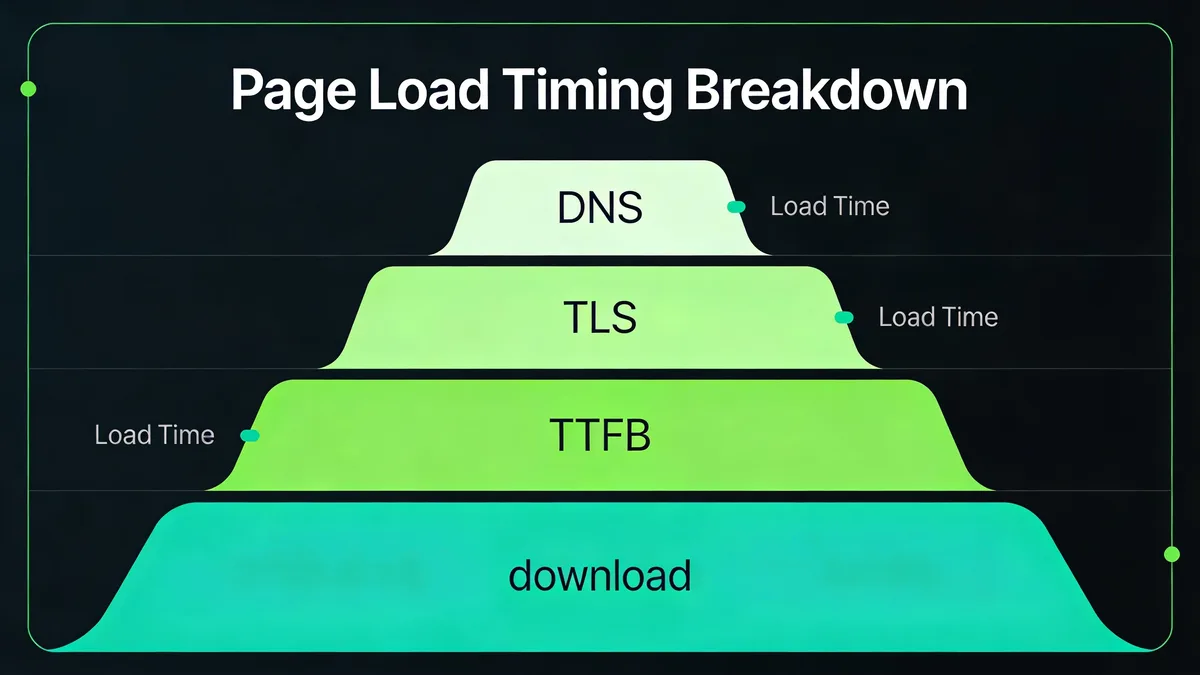
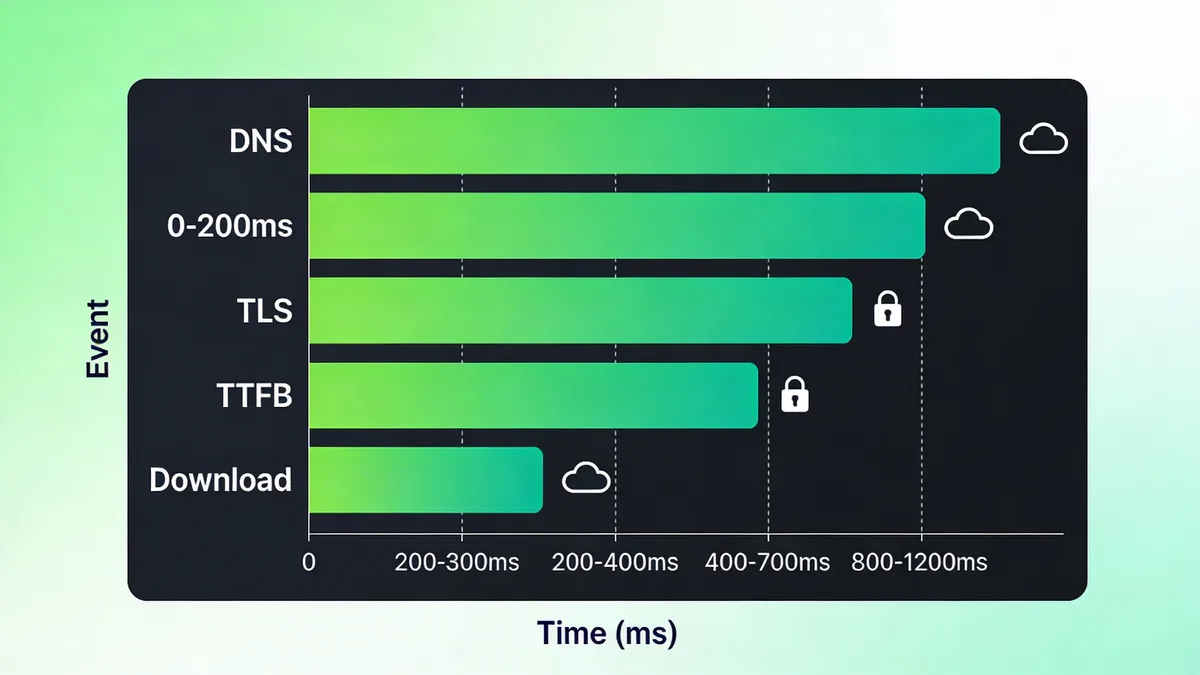
Time to First Byte (TTFB) has an outsized impact on LCP because the browser can't start rendering content until it receives the initial HTML response. If your TTFB is over 600ms, you're fighting an uphill battle for good LCP scores.
I've worked with teams where optimizing TTFB alone improved LCP by 30-50%. Focus on:
- Database query optimization
- Server-side caching implementation
- CDN configuration and edge caching
- Application performance profiling
Use WebPageTest to analyze your TTFB across different locations. If you see significant geographic variation, that's a strong indicator that CDN optimization could help. Cloudflare Workers and similar edge computing platforms can dramatically reduce TTFB for dynamic content.
Image Optimization Strategies
Images are the LCP element on most websites, making optimization critical. The biggest wins come from:
Modern image formats: Use AVIF or WebP instead of JPEG/PNG. AVIF provides 50% better compression than JPEG with superior quality. Implement format detection and serve the best supported format for each browser.
Proper sizing: Serve images at the exact dimensions needed. A 2000px image displayed at 400px wastes bandwidth and slows LCP. Use responsive images with srcset to deliver appropriate sizes.
Preloading critical images: Add <link rel="preload" as="image" href="hero-image.jpg"> for above-the-fold images. This tells the browser to download the image immediately, reducing LCP by 200-500ms in my testing.
Lazy loading exceptions: Don't lazy load the LCP image! I've seen developers accidentally lazy load hero images, which guarantees poor LCP scores.
Server and CDN Configuration
Server optimization directly impacts LCP through faster content delivery. Key configurations include:
HTTP/2 and HTTP/3: Enable multiplexing and improved performance protocols. HTTP/3 can reduce connection establishment time by 50% on mobile networks.
Compression: Enable Brotli compression for text resources. It provides 15-25% better compression than gzip, reducing transfer times.
Caching headers: Set appropriate cache headers for static resources. Long-lived caches (1 year for immutable assets) eliminate repeat download overhead.
CDN edge locations: Choose CDNs with extensive global presence. The closer your content is to users, the faster it loads. I've seen LCP improvements of 800ms+ just from better CDN coverage.
Fixing Interaction to Next Paint (INP) Issues
Understanding INP vs Legacy FID Metrics
INP replaced First Input Delay (FID) in 2024 and measures the full interaction chain, not just initial delay. While FID only measured the time until the browser started processing an event, INP tracks the entire duration until visual feedback appears.
This change makes INP more representative of actual user experience. A button click that starts processing immediately but takes 300ms to show visual feedback would have passed FID but fails INP. The 77% mobile pass rate for INP in 2025 shows improvement over legacy FID metrics.
INP considers all interactions during a page visit and reports the worst (or near-worst) interaction latency. This means optimizing for INP requires ensuring consistently responsive interactions, not just fast initial responses.
JavaScript Blocking and Main Thread Optimization
The main thread is where JavaScript execution, style calculations, and layout operations occur. When the main thread is blocked, user interactions queue up, causing poor INP scores.
Code splitting is your first defense against main thread blocking. Instead of loading a 890KB JavaScript bundle upfront, split it into smaller chunks (180KB or less) that load on demand. Use dynamic imports to defer non-critical functionality:
javascript // Instead of importing everything upfront import { heavyFeature } from './heavy-module';
// Load on demand
button.addEventListener('click', async () => {
const { heavyFeature } = await import('./heavy-module');
heavyFeature();
});
Task scheduling helps break up long-running operations. Use scheduler.postTask() or setTimeout(fn, 0) to yield control back to the browser between processing chunks.
I've seen teams reduce INP from 400ms to 150ms just by implementing proper code splitting and task scheduling. The key is measuring main thread blocking time and systematically reducing it.
Event Handler Performance
Event handlers must complete quickly to maintain good INP scores. The 200ms threshold includes event processing time, layout calculations, and paint operations.
Optimize event handlers by:
Debouncing expensive operations: Don't trigger heavy calculations on every keystroke or scroll event. Use debouncing to batch operations:
javascript const debouncedSearch = debounce((query) => { performExpensiveSearch(query); }, 300); Minimizing DOM manipulation: Batch DOM updates and use DocumentFragment for multiple insertions. Each DOM change can trigger layout recalculation, consuming main thread time.
Async processing: Move heavy computations to Web Workers when possible. This keeps the main thread free for user interaction handling.
Third-Party Script Management
Third-party scripts are notorious INP killers. Analytics, chat widgets, and advertising scripts can block the main thread unpredictably. I've debugged sites where a single third-party script caused 600ms+ INP spikes.
Strategies for third-party script optimization:
Lazy loading: Load non-critical third-party scripts after user interaction or page idle time. Use the Intersection Observer API to trigger loading when needed.
Script isolation: Use iframes or Web Workers to isolate third-party code from your main thread. This prevents their blocking behavior from affecting your INP scores.
Performance budgets: Set strict limits on third-party script impact. Monitor their performance contribution and remove scripts that consistently cause problems.
Async and defer attributes: Use async for scripts that don't depend on DOM ready state, defer for scripts that need DOM but aren't critical for initial rendering.
Resolving Cumulative Layout Shift (CLS) Problems
Visual Stability and Layout Shift Detection
CLS measures unexpected layout shifts that occur during page load and user interaction, with 81% of mobile sites achieving good scores in 2025—the strongest improvement among Core Web Vitals. Layout shifts frustrate users and can cause accidental clicks on wrong elements.
CLS is calculated as the sum of all individual layout shift scores during a page's lifetime. Each shift is scored based on the impact fraction (how much of the viewport was affected) multiplied by the distance fraction (how far elements moved).
Use Chrome DevTools to visualize layout shifts. In the Performance panel, enable "Web Vitals" and record a page load. You'll see red bars indicating when shifts occur and which elements are responsible.
The Layout Instability API provides programmatic access to shift data:
javascript new PerformanceObserver((list) => { for (const entry of list.getEntries()) { console.log('Layout shift:', entry.value, entry.sources); } }).observe({entryTypes: ['layout-shift']});
Dynamic Content and Ad Placement
Dynamic content insertion is the leading cause of CLS issues. When ads, widgets, or user-generated content loads after initial render, it pushes existing content down the page.
Reserve space for dynamic elements using CSS:
css .ad-container { min-height: 250px; /* Reserve space for banner ad / background: #f0f0f0; / Optional placeholder styling */ } Skeleton screens provide visual placeholders while content loads. They maintain layout stability and improve perceived performance by showing users that content is coming.
Transform animations don't trigger layout shifts. Use transform: translateY() instead of changing top or margin properties when animating elements into view.
I've worked with news sites where implementing proper ad space reservation reduced CLS from 0.45 to 0.08. The key is predicting content dimensions and reserving appropriate space.
Font Loading Optimization
Web font loading can cause significant layout shifts when fallback fonts have different dimensions than the final fonts. The text initially renders in the fallback font, then shifts when the web font loads.
Font-display: swap ensures text remains visible during font load but can cause shifts:
css @font-face { font-family: 'CustomFont'; src: url('font.woff2') format('woff2'); font-display: swap; } Size-adjust property helps match fallback font dimensions to web font dimensions:
css @font-face { font-family: 'Arial Fallback'; src: local('Arial'); size-adjust: 95%; /* Adjust to match web font size */ } Preload critical fonts to reduce loading delay:
html
<link rel="preload" href="critical-font.woff2" as="font" type="font/woff2" crossorigin> Font optimization tools like FontTools can help calculate optimal size-adjust values by comparing font metrics.Image and Video Element Sizing
Images and videos without explicit dimensions cause layout shifts when they load and the browser discovers their aspect ratio. Always specify width and height attributes:
html <img src="image.jpg" width="400" height="300" alt="Description"> Aspect ratio CSS maintains proportions while allowing responsive sizing:
css .responsive-image { width: 100%; height: auto; aspect-ratio: 4/3; } Intrinsic sizing for responsive images prevents shifts:
css img { max-width: 100%; height: auto; } For dynamically loaded images, set container dimensions before loading the image. This reserves the necessary space and prevents content reflow.
Advanced Monitoring and Detection Strategies
Real User Monitoring (RUM) Implementation
Real User Monitoring captures actual user experiences across diverse devices, networks, and usage patterns that synthetic testing cannot replicate. RUM provides the field data that directly correlates with business metrics and SEO rankings.
Implement RUM using the Web Vit
Start Monitoring Your Website for Free
Get 6-layer monitoring, uptime, performance, SSL, DNS, visual, and content checks, with instant alerts when something goes wrong.
Get Started